CMD
Command Prompt Basics
CMD.exe
The Command Prompt, also known as cmd.exe or CMD, is the default command line interpreter for the Windows OS. Originally based on the COMMAND.COM interpreter in DOS, the Command Prompt is ubiquitous across nearly all Windows OS. It allows users to input commands that are directly interpreted and then executed by the OS. A single command can accomplish tasks such as changing a user’s password or checking the status of network interfaces. This also reduces system resources, as graphical-based programs require more CPU and memory.
While often overshadowed by its sleek counterpart PowerShell, knowledge of cmd.exe and its commands continue to pay dividends in modern times.
Accessing CMD
There are multiple ways to access the Command Prompt on a Windows system. How you wish to access the prompt is up to personal preference as well as meeting specific criteria depending on the resources that are available at the time. Before explaining thos criteria, there are some essential concepts to explain first.
Local Access vs. Remote Access
Local Access is synonymous with having direct physical access to the machine itself. This level of access does not require the machine to be connected to a network, as it can be accessed directly through the peripherals connected to the machine. From the desktop, you can open up the command prompt by:
- Using the
Windows key+[r]to bring up the run prompt, and then typingcmd. OR - Accessing the executable from the drive path
C:\Windows\System32\cmd.exe.
Microsoft Windows [Version 10.0.19044.2006]
(c) Microsoft Corporation. All rights reserved.

C:\Users\htb>
You can your commands, scripts, or other actions as needed.
Remote Access is the equivalent of accessing the machine using virtual peripherals over the network. This level of access does not require direct physical access to the machine but requires the user to be connected to the same network or have a route to the machine they inted to access remotely. You can do this through the use of telnet, SSH, PsExec, WinRM, RDP, or other protocols as needed. For a sysadmin, remote management and access are a boon to your workflow. You would not have to go to the user’s desk and physically access the host to perform your duties. This convenience for sysadmins can also implant a security threat into your network. If these remote access tools are not configured correctly, or a threat gains access to valid credentials, an attacker can now have wide-ranging access to your environments. You must maintain the proper balance of availability and integrity of your networks for a proper security posture.
Basic Usage
Looking at the command prompt, what you see now is similar to what it was decades ago. Moreover, navigation of the command prompt has remained mostly unchanged as well. Navigating through the file system is like walking down a hallway filled with doors. As you move into hollway (directory), you can look to see what is there (dir), then either issue additional commands or keep moving.
C:\Users\htb\Desktop> dir

 Volume in drive C has no label.
 Volume Serial Number is DAE9-5896

 Directory of C:\Users\htb\Desktop

06/11/2021  11:59 PM    <DIR>          .
06/11/2021  11:59 PM    <DIR>          ..
06/11/2021  11:57 PM                 0 file1.txt
06/11/2021  11:57 PM                 0 file2.txt
06/11/2021  11:57 PM                 0 file3.txt
04/13/2021  11:24 AM             2,391 Microsoft Teams.lnk
06/11/2021  11:57 PM                 0 super-secret-sauce.txt
06/11/2021  11:59 PM                 0 write-secrets.ps1
               6 File(s)          2,391 bytes
               2 Dir(s)  35,102,117,888 bytes free
- The current path location (
C:\Users\htb\Desktop) - The command you have issued (
dir) - The results of the command (output)
Case Study: Windows Recovery
In the event of a user lockout or some technical issues preventing/inhibiting regular use of the machine, booting from a Windows installation disc gives you the option to boot to Repair Mode. From here, the user is provided access to a command prompt, allowing for command-line-based troubleshooting of the device.
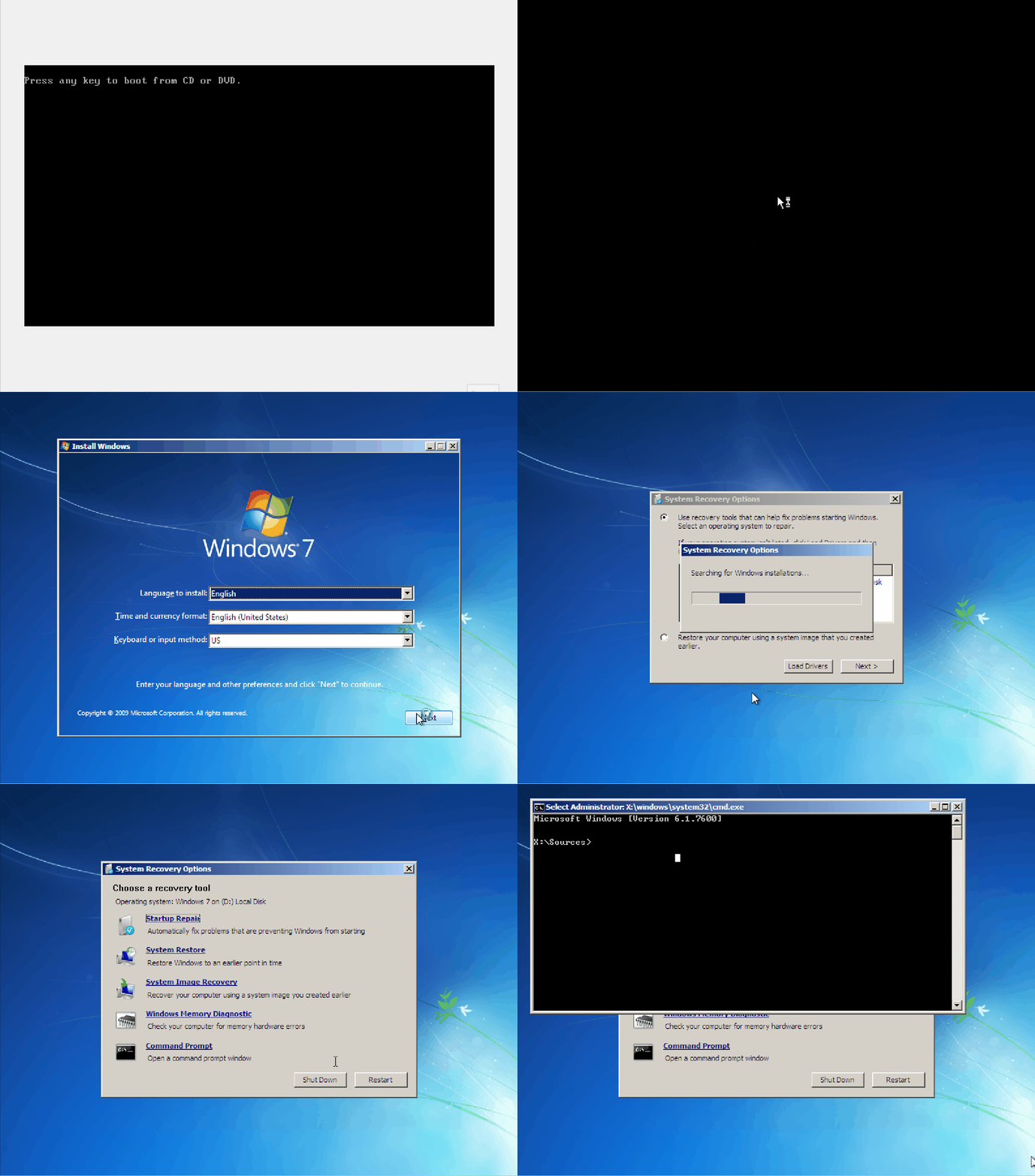
While useful, this also poses a potential risk. For example, on this Windows 7 machine, you can use the recovery command prompt to tamper with the filesystem. Specifically, replacing the Sticky Keys binary with a copy of cmd.exe.
Once the machine is rebooted, you can press [Shift] five times on the Windows login screen to invoke Sticky Keys. Since the executable has been overwritte, what you get instead is another command prompt - this time with NT AUTHORITY\SYSTEM permissions. You have bypassed any authentication and now have access to the machine as the super user.
Getting Help
The command prompt has a built-in help function that can provide you with detailed information about the available commands on your systems and how to utilize those functions.
How to Get Help
When first looking at the command prompt interface, it can be overwhelming to stare at a blank prompt. Some initial questions might emerge, such as:
- What commands do I have access to?
- How do I use these commands?
While utilizing the command prompt, finding help is as easy as typing help. Without any additional parameters, this command provides a list of built-in commands and basic information about each displayed command’s usage.
C:\htb> help

For more information on a specific command, type HELP command-name
ASSOC          Displays or modifies file extension associations.
ATTRIB         Displays or changes file attributes.
BREAK          Sets or clears extended CTRL+C checking.
BCDEDIT        Sets properties in boot database to control boot loading.
CACLS          Displays or modifies access control lists (ACLs) of files.
CALL           Calls one batch program from another.
CD             Displays the name of or changes the current directory.
CHCP           Displays or sets the active code page number.
CHDIR          Displays the name of or changes the current directory.
CHKDSK         Checks a disk and displays a status report.

<snip>
From this output, you can see that it prints out a list of system commands (builtins) and provides a basic description of its functionality. This is important because you can quickly and efficiently parse the list of built-in functions provided by the command prompt to find the function that suits your needs. From here, you can transition into answering the second question on how these commands are used. To print out detailed information about a particular command, you can issue the following: help [command name]
C:\htb> help time

Displays or sets the system time.

TIME [/T | time]

Type TIME with no parameters to display the current time setting and a prompt
for a new one. Press ENTER to keep the same time.

If Command Extensions are enabled, the TIME command supports
the /T switch which tells the command to just output the
current time, without prompting for a new time.
As you can see from the output above, when you issued the command help time, it printed the help details for time. This will work for any system command built-in but not for every command accessible on the system. Certain commands do not have a help page associated with them. However, they will redirect you to running the proper command to retrieve the desired information. For example, running help ipconfig will give you the following output.
C:\htb> help ipconfig

This command is not supported by the help utility. Try "ipconfig /?".
In the previous example, the help feature let you know that it could not provide more information as the help utility does not directly support it. However, utilizing the suggested ipconfig /? will provide you with the information you need to utilize the command correctly. Be aware that several commands use the /?modifier interchangeably with help.
Why Do You Need the Help Utility?
Example: Imagine that you are tasked to assist in an internal on-site engagement for your company. You are immediately dropped into a command prompt session on a machine from within the internal network and have been tasked with enumerating the systems. As per the rules of engagement, you have been stripped of any devices on your person and told that the firewall is blocking all outbound network traffic. You begin your enumeration on the system but need help remembering the systax for a specific command you have in mind. You realize that you cannot reach the Internet by any means.
Although this scenario might seem slightly exaggerated, there will be scenarios similar to this one as an attacker where your network access will be heavily limited, monitored, or strictly unavailable. Sometimes, you do not have every command and all parameters and syntax memorized; however, you will still be expected to perform even under these limitations. In instances where you are expected to perform, you will need alternate ways to gather the information you need instead of relying on the Internet as a quick fix to your problems.
The help utility serves as an offline manual for CMD and DOS compatible Windows system commands. Offline refers to the fact that this utility can be used on a system without network access.
There will be times, when you may not have direct access to the Internet. The help utility is meant to bridge that gap when you need assistance with commands or specific syntax for said commands on your system and may not have the external resources available to ask for help. This does not imply that the Internet is not a valuable tool to use in engagements. However, if you do not have the luxury of searching for answers to your questions, you need some way to retrieve said information.
Where Can You Find Additional Help?
Microsoft Documentation has a complete listing of the commands that can be issued within the command-line interpreter as well as detailed descriptions of how to use them.
ss64 is a handy quick reference for anything command-line related, including cmd, PowerShell, Bash, and more.
Basic Tips & Tricks
Clear Your Screen
There are times during your interaction with the command prompt when the amount of output provided to you through multiple commands overcrowding the screen and becomes an unusable mess of information. In this case, you need some way to clear the screen and provide you with an empty prompt. You can use the command cls to clear your terminal window of your previous results. This comes in handy when you need to refresh your screen and want to avoid fighting to read the terminal and figuring out where your current output starts and the old input ends.
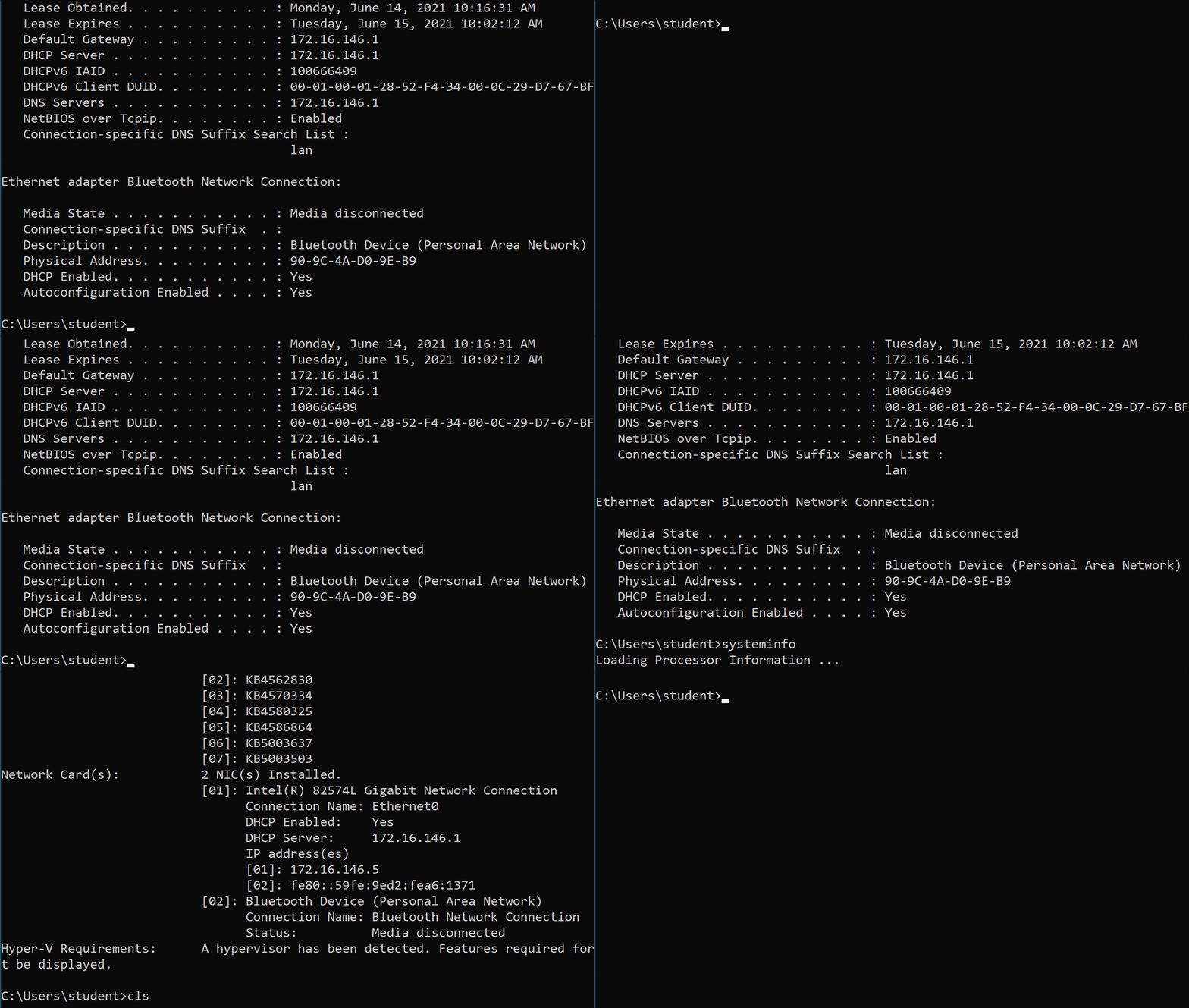
You can see from the GIF above that your terminal was packed, and you issued the cls command providing you with a blank slate.
History
Command history is a dynamic thing. It allows you to view previously ran commands in your Command Prompt’s current active session. To do this, CMD provides you with several different methods of interacting with your command history. For example, you can use the arrow keys to move up and down through your history, the page up and page down keys, and if working on a physical Windows host, you can use the function keys to interact with your session history. The last way you can view your history is by utilizing the command doskey /history. Doskey is an MS-DOS utility that keeps a history of commands issued and allows them to be referenced again.
C:\htb> doskey /history

systeminfo
ipconfig /all
cls
ipconfig /all
systeminfo
cls
history
help
doskey /history
ping 8.8.8.8
doskey /history
The table below shows a list of some of the most valuable functions and commands that can be run to interact with your session history.
| Key / Command | Description |
|---|---|
doskey /history | will print the session’s command history to the terminal or output it to a file when specified |
| page up | places the first command in your session history to the prompt |
| page down | places the last command in history to the prompt |
[UP] | allows you to scroll up through your command history to view previously run commands |
[DOWN] | allows you to scroll down to your most recent commands run |
[RIGHT] | types the previous command to prompt one character at a time |
| F3 | will retype the entire previous entry to your prompt |
| F5 | pressing F5 multiple times will allow you to cycle through previous commands |
| F7 | opens an interactive list of previous commands |
| F9 | enters a command to your prompt based on the number specified; the number corresponds to the commands’ place in your history |
info
One thing to remember is that unlike Bash or other shells, CMD does not keep a persistent record of the commands you issue through sessions. So once you close that instance, that history is gone. To save a copy of your issued commands, you can use doskey again to output the history to a file, show it on screen, and then copy it.
Exit a Running Process
At some point in your journey working with the Command Prompt, there will be times when you will need to be able to interrupt an actively running process, effectively killing it. This can be due to many different factors. However, a lot of the time, you might have the information that you need from a currently running command or find yourself dealing with an application that’s locking up unexpectedly. Thus, you need some way of interrupting your current session and any process running in it. Take the following as an example:
C:\htb> ping 8.8.8.8

Pinging 8.8.8.8 with 32 bytes of data:
Reply from 8.8.8.8: bytes=32 time=22ms TTL=114
Reply from 8.8.8.8: bytes=32 time=25ms TTL=114

Ping statistics for 8.8.8.8:
    Packets: Sent = 2, Received = 2, Lost = 0 (0% loss),
Approximate round trip times in milli-seconds:
    Minimum = 22ms, Maximum = 25ms, Average = 23ms
Control-C
^C
When running a command or process you want to interrupt, you can do so by pressing the [CTRL + c] key combination. As previously stated, this is useful for stopping a currently running process that may be non-responsive or just something you want to be completed immediately. Remember that whatever was running will be incomplete and may need more time to close itself out properly, so always be wary of what you are interrupting.
System Navigation
Listing a Directory
One of the easiest things you can do when initially poking around on a Windows host is to get a listing of the directory you are currently working in. You do that with the dir command.
C:\Users\htb\Desktop> dir

 Volume in drive C has no label.
 Volume Serial Number is DAE9-5896

 Directory of C:\Users\htb\Desktop

06/11/2021  11:59 PM    <DIR>          .
06/11/2021  11:59 PM    <DIR>          ..
06/11/2021  11:57 PM                 0 file1.txt
06/11/2021  11:57 PM                 0 file2.txt
06/11/2021  11:57 PM                 0 file3.txt
04/13/2021  11:24 AM             2,391 Microsoft Teams.lnk
06/11/2021  11:57 PM                 0 super-secret-sauce.txt
06/11/2021  11:59 PM                 0 write-secrets.ps1
               6 File(s)          2,391 bytes
               2 Dir(s)  35,102,117,888 bytes free
Finding Your Place
Before doing anything on a host, it is helpful to know where you are in the filesystem. You can determine that by utilizing the cd or chdir commands.
C:\htb> cd

C:\htb
Moving Around Using CD/CHDIR
Besides listing your current directory, both serve an additional function. These commands will move you to whatever directory you specify after the command. The specified directory can either be a directory relative to your current working directory or an absolute directory starting from the filesystem’s root.
# absolute
C:\htb> cd C:\Users\htb\Pictures

C:\Users\htb\Pictures>

# relative
C:\htb> cd .\Pictures

C:\Users\htb\Pictures>
Exploring the File System
You can get a printout of the entire path you specify and its subdirectories by utilizing the tree command.
C:\htb\student\> tree

Folder PATH listing
Volume serial number is 26E7-9EE4
C:.
├───3D Objects
├───Contacts
├───Desktop
├───Documents
├───Downloads
├───Favorites
│   └───Links
├───Links
├───Music
├───OneDrive
├───Pictures
│   ├───Camera Roll
│   └───Saved Pictures
├───Saved Games
├───Searches
└───Videos
    └───Captures
You can utilize the /F parameter with the tree command to see a listing of each file and the directories along with the directory tree of the path.
C:\htb\student\> tree /F

Folder PATH listing
Volume serial number is 26E7-9EE4
C:.
├───3D Objects
├───Contacts
├───Desktop
│       passwords.txt.txt
│       Project plans.txt
│       secrets.txt
│
├───Documents
├───Downloads
├───Favorites
│   │   Bing.URL
│   │
│   └───Links
├───Links
│       Desktop.lnk
│       Downloads.lnk
│
├───Music
├───OneDrive
├───Pictures
│   ├───Camera Roll
│   └───Saved Pictures
├───Saved Games
├───Searches
│       winrt--{S-1-5-21-1588464669-3682530959-1994202445-1000}-.searchconnector-ms
│
└───Videos
    └───Captures

    <SNIP>
Interesting Directories
Below is a table of common directories that an attacker can abuse to drop files to disk, perform recon, and help facilitate attack surface mapping on a target host.
| Name | Location | Description |
|---|---|---|
%SYSTEMROOT%\Temp | C:\Windows\Temp | Global directory containing temporary system files accessible to all users on the system. All users, regardless of authority, are provided full read, write, and execute permissions in this directory. Useful for dropping files as a low-privileged user on the system. |
%TEMP% | C:\Users\<user>\AppData\Local\Temp | Local directory containing a user’s temporary files accessible only to the user account that it is attached to. Provides full ownership to the user that owns this folder. Useful when the attacker gains control of a local/domain joined user account. |
%PUBLIC% | C:\Users\Public | Publicly accessible directory allowing any interactive logon account full access to read, write, modify, execute, etc. files and subfolders within the directory. Alternative to the global Windows Temp Directory as it’s less likely to be monitored for suspicious activity. |
%ProgramFiles% | C:\Program Files | Folder containing all 64-bit applications installed on the system. Useful for seeing what kind of applications are installed on the target system. |
%ProgramFiles(x86)% | C:\Program Files (x86) | Folder containing all 32-bit applications installed on the system. Useful for seeing what kind of applications are installed on the target system. |
Working with Directories and Files
Directories
Viewing & Listing Dirs
To get a listing of what files are within a directory, you can use the dir command, and tree provides a complete listing of all files and folders within the specified path.
Create a New Dir
You can utilize the md and mkdir commands.
Delete Dir
Deleting directories can be accomplished using the rd or rmdir commands.
rd has a switch /S that you can utilize to erase the directory and its contents.
Modifying a Dir
Using move to move the file takes the directory and any files within and move it from the source to the destination.
C:\Users\htb\Desktop> move example C:\Users\htb\Documents\example

        1 dir(s) moved.
xcopy shines in removing the Read-Only bit from files when moving them. The syntax is xcopy source destination [options].
C:\Users\htb\Desktop> xcopy C:\Users\htb\Documents\example C:\Users\htb\Desktop\ /E
C:\Users\htb\Documents\example\file-1 - Copy.txt
C:\Users\htb\Documents\example\file-1.txt
C:\Users\htb\Documents\example\file-2.txt
C:\Users\htb\Documents\example\file-3.txt
C:\Users\htb\Documents\example\file-5.txt
C:\Users\htb\Documents\example\file-4.txt
6 File(s) copied
Utilizing the /E switch, you told the xcopy to copy any files and subdirectories to include empty directories. Keep in mind this will not delete the copy in the previous directory. When performing the duplication, xcopy will reset any attributes the file had. If you wish to retain the file’s attributes, you can use the /K switch.
robocopy is xcopy’s successor built with more capability. It can copy and move files locally, to different drives, and even across a network while retaining the file data and attributes to include timestamps, ownership, ACLs, and any flags set like hidden or read-only.
C:\Users\htb\Desktop> robocopy C:\Users\htb\Desktop C:\Users\htb\Documents\

robocopy C:\Users\htb\Desktop C:\Users\htb\Documents

-------------------------------------------------------------------------------
   ROBOCOPY     ::     Robust File Copy for Windows
-------------------------------------------------------------------------------

  Started : Monday, June 21, 2021 11:05:46 AM
   Source : C:\Users\htb\Desktop\
     Dest : C:\Users\htb\Documents\

    Files : *.*

  Options : *.* /DCOPY:DA /COPY:DAT /R:1000000 /W:30

------------------------------------------------------------------------------

                           7    C:\Users\htb\Desktop\
        *EXTRA Dir        -1    C:\Users\htb\Documents\My Music\
        *EXTRA Dir        -1    C:\Users\htb\Documents\My Pictures\
        *EXTRA Dir        -1    C:\Users\htb\Documents\My Videos\
100%        Older                    282        desktop.ini
100%        New File                  19        file.txt
100%        New File                  26        normal-file.txt
100%        New File                  97        passwords.txt
100%        New File                  97        Project plans.txt
100%        New File                 114        secrets.txt
100%        New File               38380        Windows Startup.wav

------------------------------------------------------------------------------

               Total    Copied   Skipped  Mismatch    FAILED    Extras
    Dirs :         1         0         1         0         0         3
   Files :         7         7         0         0         0         0
   Bytes :    38.1 k    38.1 k         0         0         0         0
   Times :   0:00:00   0:00:00                       0:00:00   0:00:00


   Speed :              619285 Bytes/sec.
   Speed :              35.435 MegaBytes/min.
   Ended : Monday, June 21, 2021 11:05:46 AM
You can utilize the /MIR switch to permit yourself to copy the files you need temporarily.
C:\Users\htb\Desktop> robocopy /E /B /L C:\Users\htb\Desktop\example C:\Users\htb\Documents\Backup\

-------------------------------------------------------------------------------
   ROBOCOPY     ::     Robust File Copy for Windows
-------------------------------------------------------------------------------

  Started : Monday, June 21, 2021 10:03:56 PM
   Source : C:\Users\htb\Desktop\example\
     Dest : C:\Users\htb\Documents\Backup\

    Files : *.*

  Options : *.* /L /S /E /DCOPY:DA /COPY:DAT /B /R:1000000 /W:30

------------------------------------------------------------------------------

ERROR : You do not have the Backup and Restore Files user rights.
*****  You need these to perform Backup copies (/B or /ZB).

ERROR : Robocopy ran out of memory, exiting.
ERROR : Invalid Parameter #%d : "%s"

ERROR : Invalid Job File, Line #%d :"%s"


  Started : %s %s

   Source %c

     Dest %c
       Simple Usage :: ROBOCOPY source destination /MIR

             source :: Source Directory (drive:\path or \\server\share\path).
        destination :: Destination Dir  (drive:\path or \\server\share\path).
               /MIR :: Mirror a complete directory tree.

    For more usage information run ROBOCOPY /?


****  /MIR can DELETE files as well as copy them !
From the output above you can see that your permissions are insufficient. Utilizing the /MIR switch will complete the task for you. Be aware that it will mark these files as a system backup and hide them from view. You can clear the additional attributes if you add the /A-:SH switch to your command. Be careful of the /MIR switch, as it will mirror the destination directory to the source. Any file that exists within the destination will be removed. You also used the /L switch. This is a what-if command. It will process the command you issue but not execute it; it just shows you the potential result.
C:\Users\htb\Desktop> robocopy /E /MIR /A-:SH C:\Users\htb\Desktop\notes\ C:\Users\htb\Documents\Backup\Files-to-exfil\

-------------------------------------------------------------------------------
   ROBOCOPY     ::     Robust File Copy for Windows
-------------------------------------------------------------------------------

  Started : Monday, June 21, 2021 10:45:46 PM
   Source : C:\Users\htb\Desktop\notes\
     Dest : C:\Users\htb\Documents\Backup\Files-to-exfil\

    Files : *.*

  Options : *.* /S /E /DCOPY:DA /COPY:DAT /PURGE /MIR /A-:SH /R:1000000 /W:30

------------------------------------------------------------------------------

                           2    C:\Users\htb\Desktop\notes\
100%        New File                  16        python-notes
100%        New File                  13        vscode

------------------------------------------------------------------------------

               Total    Copied   Skipped  Mismatch    FAILED    Extras
    Dirs :         1         0         1         0         0         0
   Files :         2         2         0         0         0         0
   Bytes :        29        29         0         0         0         0
   Times :   0:00:00   0:00:00                       0:00:00   0:00:00
   Ended : Monday, June 21, 2021 10:45:46 PM


C:\Users\htb\Documents\Backup\Files-to-exfil>dir
 Volume in drive C has no label.
 Volume Serial Number is 26E7-9EE4

 Directory of C:\Users\htb\Documents\Backup\Files-to-exfil

06/21/2021  10:45 PM    <DIR>          .
06/21/2021  10:45 PM    <DIR>          ..
06/15/2021  09:29 PM                16 python-notes
06/15/2021  09:28 PM                13 vscode
               2 File(s)             29 bytes
               2 Dir(s)  38,285,676,544 bytes free
Files
Last Files & View Their Contents
more is a built-in tool. With this tool, you can view the contents of a file or the results of another command printed to it one screen at a time. Think of it as a way to buffer scrolling text that may otherwise overflow the terminal buffer.
C:\Users\htb\Documents\Backup> more secrets.txt

The TVA has several copies of the Infinity Stones..


Bucky is a good guy. TWS is a Bo$$


The sky isn't blue..


-- More (6%) --
With large files containing multiple blank lines or a large amount of empty space between data, you can use the /S option to crunch that blank space down to a single line at each point to make it easier to view.
C:\Users\htb\Documents\Backup> more /S secrets.txt

The TVA has several copies of the Infinity Stones..

Bucky is a good guy. TWS is a Bo$$

The sky isn't blue..

Windows IP Configuration

   Host Name . . . . . . . . . . . . : DESKTOP-LSM3BSF
   Primary Dns Suffix  . . . . . . . :
   Node Type . . . . . . . . . . . . : Hybrid
   IP Routing Enabled. . . . . . . . : No
   WINS Proxy Enabled. . . . . . . . : No
   DNS Suffix Search List. . . . . . : lan

Ethernet adapter Ethernet0:

   Connection-specific DNS Suffix  . : lan
   Description . . . . . . . . . . . : Intel(R) 82574L Gigabit Network Connection
   Physical Address. . . . . . . . . : 00-0C-29-D7-67-BF
-- More (27%) --
You can also pipe command output to more.
C:\Users\htb\> ipconfig /all | more

Windows IP Configuration

   Host Name . . . . . . . . . . . . : DESKTOP-LSM3BSF
   Primary Dns Suffix  . . . . . . . :
   Node Type . . . . . . . . . . . . : Hybrid
   IP Routing Enabled. . . . . . . . : No
   WINS Proxy Enabled. . . . . . . . : No
   DNS Suffix Search List. . . . . . : lan

Ethernet adapter Ethernet0:

   Connection-specific DNS Suffix  . : lan
   Description . . . . . . . . . . . : Intel(R) 82574L Gigabit Network Connection
   Physical Address. . . . . . . . . : 00-0C-29-D7-67-BF
   DHCP Enabled. . . . . . . . . . . : Yes
   Autoconfiguration Enabled . . . . : Yes
   Link-local IPv6 Address . . . . . : fe80::59fe:9ed2:fea6:1371%5(Preferred)
   IPv4 Address. . . . . . . . . . . : 172.16.146.5(Preferred)
-- More  --
With openfiles, you can see what file on your local pc or a remote host has open and from which user. This command requires admin privileges on the host you are trying to view. With this tool, you can view open files, disconnect open files, and even kick users from accessing specific files. The ability to use this command is not enabled by default in Windows systems.
type can display the contents of multiple text files at once. It is also possible to utilize file redirection with type as well.
C:\Users\htb\Desktop>type bio.txt

James Buchanan "Bucky" Barnes Jr. is a fictional character appearing in American comic books published by Marvel Comics. Originally introduced as a sidekick to Captain America, the character was created by Joe Simon and Jack Kirby and first appeared in Captain America Comics #1 (cover-dated March 1941) (which was published by Marvel's predecessor, Timely Comics). Barnes' original costume (or one based on it) and the Bucky nickname have been used by other superheroes in the Marvel Universe over the years.[1] The character is brought back from supposed death as the brainwashed assassin cyborg called Winter Soldier (Russian: Зимний Солдат, translit. Zimniy Soldát). The character's memories and personality are later restored, leading him to become a dark hero in search of redemption. He temporarily assumes the role of "Captain America" when Steve Rogers was presumed to be dead. During the 2011 crossover Fear Itself, Barnes is injected with the Infinity Formula, which increases his natural vitality and physical traits in a way that is similar to (but less powerful than) the super-soldier serum used on Captain America.[2]
Create and Modify a File
echo with output redirection allows you to modify a file if it already exists or create a new file at the time of the call.
C:\Users\htb\Desktop>echo Check out this text > demo.txt

C:\Users\htb\Desktop>type demo.txt
Check out this text

C:\Users\htb\Desktop>echo More text for our demo file >> demo.txt

C:\Users\htb\Desktop>type demo.txt
Check out this text
More text for our demo file
With fsutil, you can do many things, for example creating a file.
C:\Users\htb\Desktop>fsutil file createNew for-sure.txt 222
File C:\Users\htb\Desktop\for-sure.txt is created

C:\Users\htb\Desktop>echo " my super cool text file from fsutil "> for-sure.txt

C:\Users\htb\Desktop>type for-sure.txt
" my super cool text file from fsutil "
ren allows you to change the name of a file to something new.
C:\Users\htb\Desktop> ren demo.txt superdemo.txt

C:\Users\htb\Desktop>dir
 Volume in drive C has no label.
 Volume Serial Number is 26E7-9EE4

 Directory of C:\Users\htb\Desktop

06/22/2021  04:25 PM    <DIR>          .
06/22/2021  04:25 PM    <DIR>          ..
06/22/2021  03:21 PM             1,140 bio.txt
06/16/2021  02:36 PM    <DIR>          example
06/14/2021  10:37 PM                19 file.txt
06/22/2021  04:12 PM                41 for-sure.txt
06/22/2021  03:59 PM                12 maybe.txt
06/15/2021  10:26 PM    <DIR>          new-directory
06/22/2021  03:48 PM                 9 nono.txt
06/14/2021  10:59 PM                26 normal-file.txt
06/15/2021  09:29 PM    <DIR>          Notes
06/14/2021  10:28 PM                97 passwords.txt
06/14/2021  10:34 PM                97 Project plans.txt
06/22/2021  03:24 PM               211 secrets.txt
06/22/2021  04:14 PM                52 superdemo.txt
06/22/2021  03:18 PM             2,534 type.txt
06/21/2021  11:33 AM                 0 why-tho.txt
12/07/2019  05:08 AM            38,380 Windows Startup.wav
06/15/2021  09:29 PM    <DIR>          Work-Policies
06/15/2021  10:28 PM    <DIR>          yet-another-dir
              13 File(s)         42,618 bytes
               7 Dir(s)  39,091,531,776 bytes free
Input / Output
Sending output to a file can be done by using >.
C:\Users\htb\Documents>ipconfig /all > details.txt

C:\Users\htb\Documents>dir
 Volume in drive C has no label.
 Volume Serial Number is 26E7-9EE4

 Directory of C:\Users\htb\Documents

06/23/2021  02:44 PM    <DIR>          .
06/23/2021  02:44 PM    <DIR>          ..
06/21/2021  10:38 PM    <DIR>          Backup
06/23/2021  02:44 PM             1,813 details.txt
06/14/2021  10:34 PM                97 Project plans.txt
06/14/2021  08:38 PM               114 secrets.txt
               3 File(s)          2,024 bytes
               3 Dir(s)  39,028,760,576 bytes free

C:\Users\htb\Documents>type details.txt

Windows IP Configuration

   Host Name . . . . . . . . . . . . : DESKTOP-LSM3BSF
   Primary Dns Suffix  . . . . . . . :
   Node Type . . . . . . . . . . . . : Hybrid
   IP Routing Enabled. . . . . . . . : No
   WINS Proxy Enabled. . . . . . . . : No
   DNS Suffix Search List. . . . . . : greenhorn.corp

Ethernet adapter Ethernet0:

   Connection-specific DNS Suffix  . : greenhorn.corp
   Description . . . . . . . . . . . : Intel(R) 82574L Gigabit Network Connection
   Physical Address. . . . . . . . . : 00-0C-29-D7-67-BF
   DHCP Enabled. . . . . . . . . . . : Yes
   Autoconfiguration Enabled . . . . : Yes
   Link-local IPv6 Address . . . . . : fe80::59fe:9ed2:fea6:1371%8(Preferred)
   IPv4 Address. . . . . . . . . . . : 172.16.146.5(Preferred)
   Subnet Mask . . . . . . . . . . . : 255.255.255.0
   Lease Obtained. . . . . . . . . . : Wednesday, June 23, 2021 2:42:19 PM
   Lease Expires . . . . . . . . . . : Thursday, June 24, 2021 2:27:59 PM
   Default Gateway . . . . . . . . . : 172.16.146.1
To append an already populated file, you can utilize >>.
C:\Users\htb\Documents> echo a b c d e > test.txt

C:\Users\htb\Documents>type test.txt
a b c d e

C:\Users\htb\Documents>echo f g h i j k see how this works now? >> test.txt

C:\Users\htb\Documents>type test.txt
a b c d e
f g h i j k see how this works now?
You can also feed input into a command by using <.
C:\Users\htb\Documents>find /i "see" < test.txt

f g h i j k see how this works now?
Another route you can take is to feed the output from a command directly into another command with the |.
C:\Users\htb\Documents>ipconfig /all | find /i "IPV4"

   IPv4 Address. . . . . . . . . . . : 172.16.146.5(Preferred)
If you wish to have two commands executed in succession, you can issue the command and follow it with a &.
C:\Users\htb\Documents>ping 8.8.8.8 & type test.txt

Pinging 8.8.8.8 with 32 bytes of data:
Reply from 8.8.8.8: bytes=32 time=22ms TTL=114
Reply from 8.8.8.8: bytes=32 time=19ms TTL=114
Reply from 8.8.8.8: bytes=32 time=17ms TTL=114
Reply from 8.8.8.8: bytes=32 time=16ms TTL=114

Ping statistics for 8.8.8.8:
    Packets: Sent = 4, Received = 4, Lost = 0 (0% loss),
Approximate round trip times in milli-seconds:
    Minimum = 16ms, Maximum = 22ms, Average = 18ms
a b c d e
f g h i j k see how this works now?
If you care about the result or state of the commands being run, you can utilize && to say run command A, and if it succeeds, run command B.
C:\Users\student\Documents>cd C:\Users\student\Documents\Backup && echo 'did this work' > yes.txt

C:\Users\student\Documents\Backup>type yes.txt
'did this work'
You can also accomplish the opposite by using ||.
Deleting Files
When utilizing del or erase, remember that you can specify a directory, a filename, a list of names, or even a specific attribute to target when trying to delete files.
C:\Users\htb\Desktop\example> dir

 Volume in drive C has no label.
 Volume Serial Number is 26E7-9EE4

 Directory of C:\Users\htb\Desktop\example

06/16/2021  02:00 PM    <DIR>          .
06/16/2021  02:00 PM    <DIR>          ..
06/16/2021  02:00 PM                 5 file-1
06/16/2021  02:00 PM                 5 file-2
06/16/2021  02:00 PM                 5 file-3
06/16/2021  02:00 PM                 5 file-4
06/16/2021  02:00 PM                 5 file-5
06/16/2021  02:00 PM                 5 file-6
06/16/2021  02:00 PM                 5 file-66
               7 File(s)             35 bytes
               2 Dir(s)  38,633,730,048 bytes free

C:\Users\htb\Desktop\example>del file-1

C:\Users\htb\Desktop\example>dir
 Volume in drive C has no label.
 Volume Serial Number is 26E7-9EE4

 Directory of C:\Users\htb\Desktop\example

06/16/2021  02:03 PM    <DIR>          .
06/16/2021  02:03 PM    <DIR>          ..
06/16/2021  02:00 PM                 5 file-2
06/16/2021  02:00 PM                 5 file-3
06/16/2021  02:00 PM                 5 file-4
06/16/2021  02:00 PM                 5 file-5
06/16/2021  02:00 PM                 5 file-6
06/16/2021  02:00 PM                 5 file-66
               6 File(s)             30 bytes
               2 Dir(s)  38,633,730,048 bytes free
… and:
C:\Users\htb\Desktop\example> erase file-3 file-5

dir
 Volume in drive C has no label.
 Volume Serial Number is 26E7-9EE4

 Directory of C:\Users\htb\Desktop\example

06/16/2021  02:06 PM    <DIR>          .
06/16/2021  02:06 PM    <DIR>          ..
06/16/2021  02:00 PM                 5 file-2
06/16/2021  02:00 PM                 5 file-4
06/16/2021  02:00 PM                 5 file-6
06/16/2021  02:00 PM                 5 file-66
               4 File(s)             20 bytes
               2 Dir(s)  38,633,218,048 bytes free
If you want to get rid of a read-only file, you can do that with the /A: switch. That will delete files based on a specific attribute.
C:\Users\htb\Desktop\example> help del

Deletes one or more files.

DEL [/P] [/F] [/S] [/Q] [/A[[:]attributes]] names
ERASE [/P] [/F] [/S] [/Q] [/A[[:]attributes]] names

  names         Specifies a list of one or more files or directories.
                Wildcards may be used to delete multiple files. If a
                directory is specified, all files within the directory
                will be deleted.

  /P            Prompts for confirmation before deleting each file.
  /F            Force deleting of read-only files.
  /S            Delete specified files from all subdirectories.
  /Q            Quiet mode, do not ask if ok to delete on global wildcard
  /A            Selects files to delete based on attributes
  attributes    R  Read-only files            S  System files
                H  Hidden files               A  Files ready for archiving
                I  Not content indexed Files  L  Reparse Points
                O  Offline files              -  Prefix meaning not
Copying and Moving Files
By default, copy will complete its task and close. If you wish to ensure the files copied are copied correctly, you can use the /V switch to turn on validation.
C:\Users\student\Documents\Backup>copy secrets.txt C:\Users\student\Downloads\not-secrets.txt

        1 file(s) copied.
C:\Users\student\Downloads>dir
 Volume in drive C has no label.
 Volume Serial Number is 26E7-9EE4

 Directory of C:\Users\student\Downloads

06/23/2021  10:35 PM    <DIR>          .
06/23/2021  10:35 PM    <DIR>          ..
06/21/2021  11:58 PM             2,418 not-secrets.txt
               1 File(s)          2,418 bytes
               2 Dir(s)  39,021,146,112 bytes free
… and:
C:\Windows\System32> copy calc.exe C:\Users\student\Downloads\copied-calc.exe /V
Overwrite C:\Users\student\Downloads\copied-calc.exe? (Yes/No/All): A
        1 file(s) copied.
With move, you can move files and directories from one place to another and rename them. Move differs from copy because it can also rename and move directories.
C:\Users\student\Desktop>move C:\Users\student\Desktop\bio.txt C:\Users\student\Downloads

        1 file(s) moved.

C:\Users\student\Desktop>dir C:\Users\student\Downloads
 Volume in drive C has no label.
 Volume Serial Number is 26E7-9EE4

 Directory of C:\Users\student\Downloads

06/24/2021  11:10 AM    <DIR>          .
06/24/2021  11:10 AM    <DIR>          ..
06/22/2021  03:21 PM             1,140 bio.txt
12/07/2019  05:09 AM            27,648 copied-calc.exe
06/21/2021  11:58 PM             2,418 not-secrets.txt
               3 File(s)         31,206 bytes
               2 Dir(s)  39,122,550,784 bytes free