Defensive Considerations
Hardening AD
Step One: Document and Audit
Proper AD hardening can keep attackers contained and prevent lateral movement, privilege escalation, and access to sensitive data and resources. One of the essential steps in AD hardening is understanding everything in your AD environment. An audit of everything listed below should be done annually, if not every few months, to ensure your records are up to date. You care about:
- Naming conventions of OUs, computers, users, groups
- DNS, network, and DHCP config
- An intimate understanding of all GPOs and the objects that they are applied to
- Assignment of FSMO roles
- A list of all enterprise hosts and their location
- Any trust relationship you have with other domains or outside entities
- Users who have elevated permissions
People, Processes, and Technology
AD hardening can be broken out into the categories People, Processes, and Technology. These hardening measures will encompass the hardware, software, and human aspects of any network.
People
In even the most hardened environment, users remain the weakest link. Enforcing security best practices for standard users and administrators will prevent “easy wins” for pentesters and malicious attackers. You should also strive to keep you users educated and aware of threats to themselves. The measures below are a great way to start securing the Human element of an AD environment.
- The organization should have a strong password policy, with a password filter that disallows the use of common words. If possible, an enterprise password manager would be used to assist users with choosing and using complex passwords.
- Rotate passwords periodically for all service accounts.
- Disallow local administrator access on user workstations unless a specific business need exist.
- Disable the default
RID-500 local adminaccount and create a new admin account for administration subject to LAPS password rotation. - Implement split tiers of administration for administrative users. Too often, during an assessment, you will gain access to Domain Administrator creds on a computer that an administrator uses for all work activities.
- Clean up privileged groups. Does the organization need 50+ Domain/Enterprise Admins? Restrict group membership in highly privileged groups to only those users who require this access to perform their day-to-day system administrator duties.
- Where appropriate, place accounts in the Protected Users group.
- Disable Kerberos delegation for administrative accounts.
Protected Users Group
The Protected Users Group first appeared with Windows Server 2012 R2. This group can be used to restrict what members of this privileged group can do in a domain. Adding users to Protected Users prevents user credentials from being abused if left in memory on a host.
PS C:\Users\htb-student> Get-ADGroup -Identity "Protected Users" -Properties Name,Description,Members


Description       : Members of this group are afforded additional protections against authentication security threats.
                    See http://go.microsoft.com/fwlink/?LinkId=298939 for more information.
DistinguishedName : CN=Protected Users,CN=Users,DC=INLANEFREIGHT,DC=LOCAL
GroupCategory     : Security
GroupScope        : Global
Members           : {CN=sqlprod,OU=Service Accounts,OU=IT,OU=Employees,DC=INLANEFREIGHT,DC=LOCAL, CN=sqldev,OU=Service
                    Accounts,OU=IT,OU=Employees,DC=INLANEFREIGHT,DC=LOCAL}
Name              : Protected Users
ObjectClass       : group
ObjectGUID        : e4e19353-d08f-4790-95bc-c544a38cd534
SamAccountName    : Protected Users
SID               : S-1-5-21-2974783224-3764228556-2640795941-525
The group provides the following DC and device protections:
- Group members can not be delegated with constrained or unconstrained delegation.
- CredSSP will not cache plaintext creds in memory even if Allow delegation default credentials is set within Group Policy.
- Windows Digest will not cache the user’s plaintext password, even if Windows Digest is enabled.
- Members cannot authenticate using NTLM authentication or use DES or RC4 keys.
- After acquiring a TGT, the user’s long-term keys or plaintext creds are not cached.
- Members cannot renew a TGT longer than the original 4-hour TTL.
Along with ensuring your users cannot cause harm to themselves, you should consider your policies and procedures for domain access and control.
Processes
Maintaining and enforcing policies and procedures that can significantly impact an organization’s overall security posture is necessary. Without defined policies, it is impossible to hold an organization’s employees accountable, and difficult to respond to an incident without defined and practiced procedures such as a disaster recovery plan. The items below can help to define processes, policies, and procedures.
- Proper policies and procedures for AD asset management
- AD host audit, the use of asset tags, and periodic asset inventories can help ensure hosts are not lost.
- Access control policies, multi-factor authentication mechanisms.
- Processes for provisioning and decommissioning hosts.
- AD cleanup policies.
- Are accounts for former employees removed or just disabled?
- What is the process for removing stale records from AD?
- Processes for decommissioning legacy OS/services
- Schedule for user, groups, and hosts audit
Technology
Periodically review AD for legacy misconfigs and new emerging threats. As changes are made to AD, ensure that common misconfigs are not introduced. Pay attention to any vulns introduced by AD and tools or applications utilized in the environment.
- Run tools such as BloodHound, PingCastle, and Grouper periodically to identify AD misconfigs.
- Ensure that admins are not storing passwords in the AD account description field.
- Review SYSVOL for scripts containing passwords or other sensitive data.
- Avoid the use of “normal” service accounts, utilizing Group Managed and Managed Service Accounts wherever possible to mitigate the risk of Kerberoasting.
- Prevent direct access to DCs through the use of hardened jump hosts.
- Consider setting the ms-DS-MachineAccountQuota attribute to 0, which disallows users from adding machine accounts and can prevent several attacks such as the noPac attack and Resource-Based Constrained Delegation.
- Disable the print spooler service wherever possible to prevent several attacks.
- Disable NTLM authentication for DCs if possible.
- Use Extended Protection for Authentication along with enabling Require SSL only to allow HTTPS connections for the Certificate Authority Web Enrollment and Certificate Enrollment Web Service services.
- Enable SMB signing and LDAP signing.
- Take steps to prevent enumeration with tools like BloodHound.
- Ideally, perform quarterly pentests/AD security assessments, but if budget constraints exist, these should be performed annually at very least.
- Test backups for validity and review/practice disaster recovery plans.
- Enable the restriction of anonymous access and prevent null session enumeration by setting the RestrictNullSessAccess registry key to 1 to restrict null session access to unauthenticated users.
Additional AD Auditing Techniques
AD Explorer
AD Explorer is part of the Sysinternals Suite.
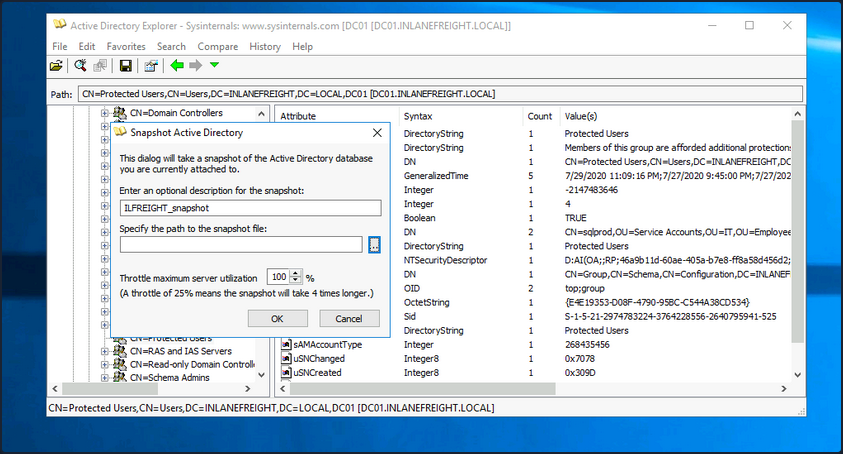
AD Explorer can also be used to save snapshots of an AD database for offline viewing and comparison. You can take a snapshot of AD at a point in time and explore it later, during the reporting phase, as you would explore any other database. It can also be used to perform a before and after comparison of AD to uncover changes in objects, attributes, and security permissions.
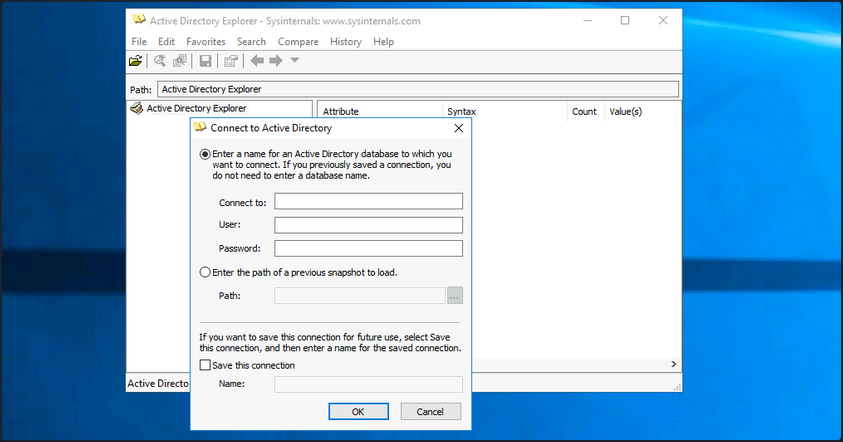
When you first load the tool, you are prompted for login credentials or to load a previous snapshot. You can log in with any valid domain user.
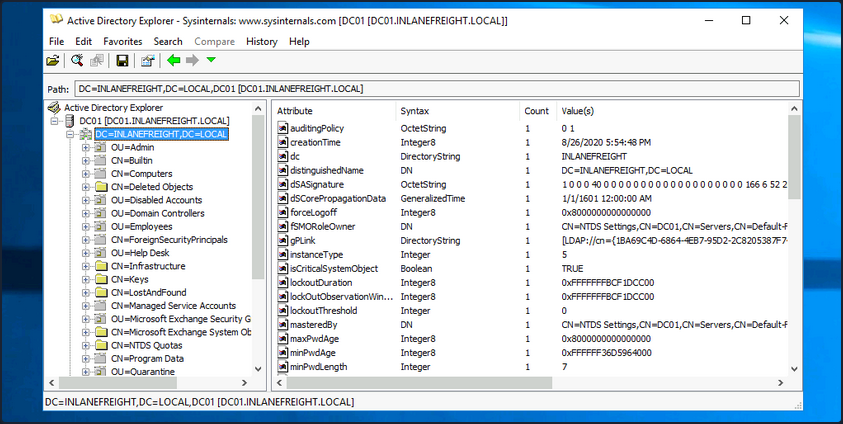
Once logged in, you can freely browse AD and view information about all objects.
To take a snapshot of AD, go to File -> Create Snapshot and enter a name for the snapshot. Once it is complete, you can move it offline for further analysis.
PingCastle
… is a powerful tool that evaluates the security posture of an AD environment and provides you the result in several different maps and graphs. Thinking about security for a second, if you do not have an active inventory of the hosts in your enterprise, PingCastle can be a great resource to help you gather one in a nice user-readable map of the domain. PingCastle is different from tools such as PowerView and BloodHound because, aside from providing you with enumeration data that can inform your attacks, it also provides a detailed report of the target domain’s security level using a methodology based on a risk assessment/maturity framework. The scoring shown in the report is based on the Capability Maturity Model Integration. For a quick look at the help context provided, you can issue the -help switch in cmd-prompt.
C:\htb> PingCastle.exe --help

switch:
  --help              : display this message
  --interactive       : force the interactive mode
  --log               : generate a log file
  --log-console       : add log to the console
  --log-samba <option>: enable samba login (example: 10)

Common options when connecting to the AD
  --server <server>   : use this server (default: current domain controller)
                        the special value * or *.forest do the healthcheck for all domains
  --port <port>       : the port to use for ADWS or LDAP (default: 9389 or 389)
  --user <user>       : use this user (default: integrated authentication)
  --password <pass>   : use this password (default: asked on a secure prompt)
  --protocol <proto>  : selection the protocol to use among LDAP or ADWS (fastest)
                      : ADWSThenLDAP (default), ADWSOnly, LDAPOnly, LDAPThenADWS

<SNIP>
To run PingCastle, you can call the executable by typing PingCastle.exe into your CMD or PowerShell window or by clicking on the executable, and it will drop you into interactive mode, presenting you with a menu of options inside the TUI.
|:.      PingCastle (Version 2.10.1.0     1/19/2022 8:12:02 AM)
|  #:.   Get Active Directory Security at 80% in 20% of the time
# @@  >  End of support: 7/31/2023
| @@@:
: .#                                 Vincent LE TOUX (contact@pingcastle.com)
  .:       twitter: @mysmartlogon                    https://www.pingcastle.com
What do you want to do?
=======================
Using interactive mode.
Do not forget that there are other command line switches like --help that you can use
  1-healthcheck-Score the risk of a domain
  2-conso      -Aggregate multiple reports into a single one
  3-carto      -Build a map of all interconnected domains
  4-scanner    -Perform specific security checks on workstations
  5-export     -Export users or computers
  6-advanced   -Open the advanced menu
  0-Exit
==============================
This is the main functionality of PingCastle. In a matter of minutes, it produces a report which will give you an overview of your Active Directory security. This report can be generated on other domains by using the existing trust links.
The default option is the healthcheck run, which will establish a baseline overview of the domain, and provide you with pertinent information dealing with misconfigs and vulns. Even better, PingCastle can report recent vulns susceptibility, your shares, trusts, the delegation of permissions, and much more about your user and computer status. Under the Scanner option, you find most of these checks.
|:.      PingCastle (Version 2.10.1.0     1/19/2022 8:12:02 AM)
|  #:.   Get Active Directory Security at 80% in 20% of the time
# @@  >  End of support: 7/31/2023
| @@@:
: .#                                 Vincent LE TOUX (contact@pingcastle.com)
  .:       twitter: @mysmartlogon                    https://www.pingcastle.com
Select a scanner
================
What scanner would you like to run ?
WARNING: Checking a lot of workstations may raise security alerts.
  1-aclcheck                                                  9-oxidbindings
  2-antivirus                                                 a-remote
  3-computerversion                                           b-share
  4-foreignusers                                              c-smb
  5-laps_bitlocker                                            d-smb3querynetwork
  6-localadmin                                                e-spooler
  7-nullsession                                               f-startup
  8-nullsession-trust                                         g-zerologon
  0-Exit
==============================
Check authorization related to users or groups. Default to everyone, authenticated users and domain users
Throughout the report, there are sections such as domain, user, group, and trust information and a specific table calling out “anomalies” or issues that may require immediate attention. You will also be presented with the domain’s overall risk score.
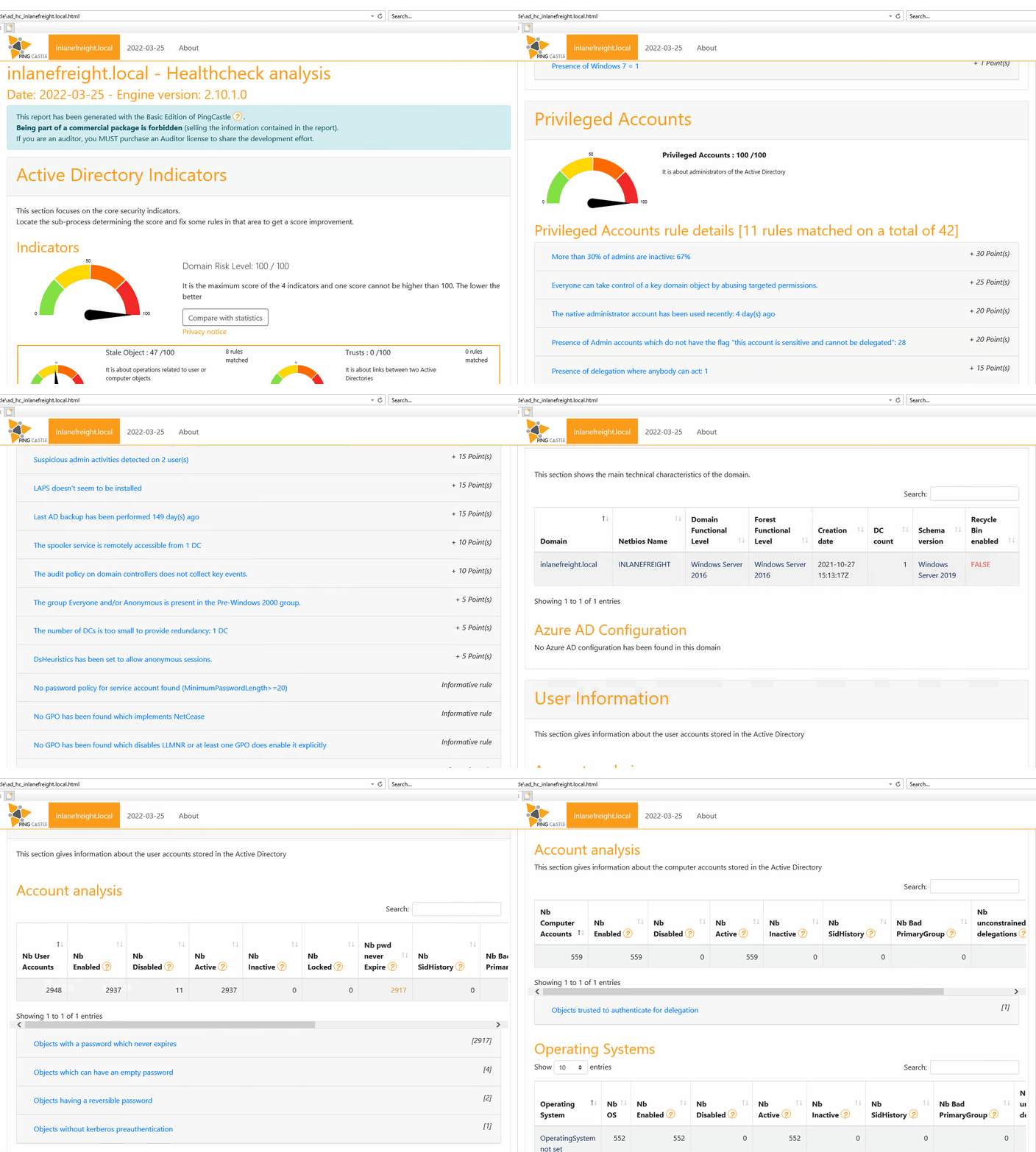
Aside from being helpful in performing very thorough domain enumeration when combined with other tools, PingCastle can be helpful to give clients a quick analysis of their domain security posture, or can be used by internal teams to self-assess and find areas of concern or opportunities for further hardening.
Group3r
… is a tool purpose-built to find vulns in AD associated Group Policy. Group3r must be run from a domain-joined host with a domain user, or in the context of a domain user.
C:\htb> group3r.exe -f <filepath-name.log>
When running Group3r, you must specify the -s or the -f flag. These will specify whether to send results back to stdout or to the file you want to send the results to. For more options and usage information, utilize the -h flag, or check out the usage info at the link above.
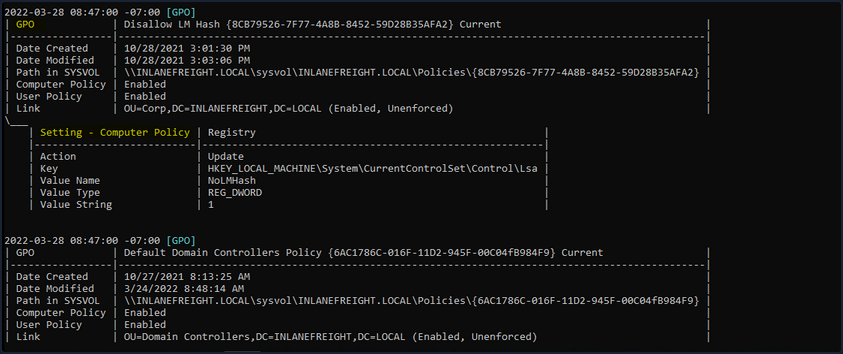
When reading the output from Group3r, each indentation is a different level, so no indent will be the GPO, one indent will be policy settings, and another will be findings in those settings. Below you can see the output shown from a finding.
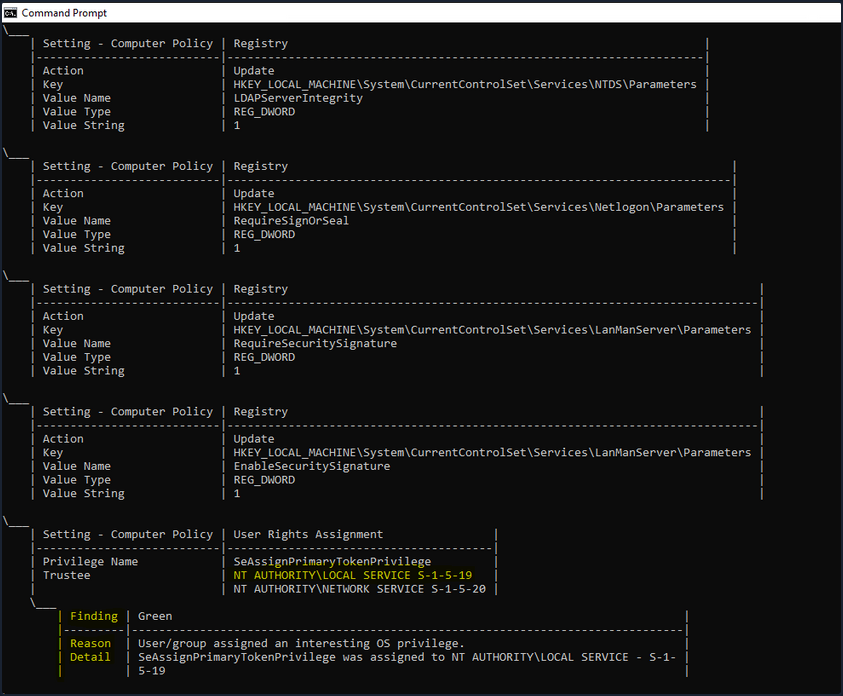
In the image above, you see an example of a finding from Group3r. It will present it as a linked box to the policy setting, define the interesting portion and give you a reason for the finding. It is worth the effort to run Group3r if you have the opportunity. It will often find interesting paths or objects that other tools will overlook.
ADRecon
It is also worth running a tool like ADRecon and analyzing the results, just in case all of your enumeration missed something minor that may be useful for you or worth pointing out to your client.
PS C:\htb> .\ADRecon.ps1

[*] ADRecon v1.1 by Prashant Mahajan (@prashant3535)
[*] Running on INLANEFREIGHT.LOCAL\MS01 - Member Server
[*] Commencing - 03/28/2022 09:24:58
[-] Domain
[-] Forest
[-] Trusts
[-] Sites
[-] Subnets
[-] SchemaHistory - May take some time
[-] Default Password Policy
[-] Fine Grained Password Policy - May need a Privileged Account
[-] Domain Controllers
[-] Users and SPNs - May take some time
[-] PasswordAttributes - Experimental
[-] Groups and Membership Changes - May take some time
[-] Group Memberships - May take some time
[-] OrganizationalUnits (OUs)
[-] GPOs
[-] gPLinks - Scope of Management (SOM)
[-] DNS Zones and Records
[-] Printers
[-] Computers and SPNs - May take some time
[-] LAPS - Needs Privileged Account
[-] BitLocker Recovery Keys - Needs Privileged Account
[-] GPOReport - May take some time
[*] Total Execution Time (mins): 11.05
[*] Output Directory: C:\Tools\ADRecon-Report-20220328092458
Once done, ADRecon will drop a report for you in a new folder under the dir you executed from. You can see an example of the results in the terminal below. You will get a report in HTML format and a folder with CSV results. When generating the report, it should be noted that the program Excel needs to be installed, or the script will not automatically generate the report in that matter; it will just leave you with the .csv files. If you want output for Group Policy, you need to ensure the host you run from has the GroupPolicy PowerShell module installed. You can go back later and generate the Excel report from another host using the -GenExcel switch and feeding in the report folder.
PS C:\htb> ls

    Directory: C:\Tools\ADRecon-Report-20220328092458

Mode                LastWriteTime         Length Name
----                -------------         ------ ----
d-----         3/28/2022  12:42 PM                CSV-Files
-a----         3/28/2022  12:42 PM        2758736 GPO-Report.html
-a----         3/28/2022  12:42 PM         392780 GPO-Report.xml